INHALTSVERZEICHNIS
Error description
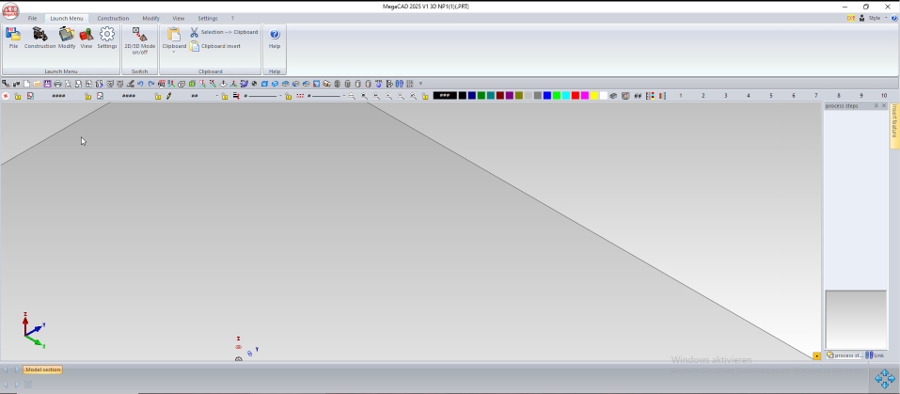
In some cases, the PARTS4CAD menu is not loaded — or only partially loaded — after starting MegaCAD. The PARTS4CAD entry is then missing from the "Launch Menu" ribbon, as shown below.
Solution approach
Until MegaCAD provides a permanent fix, you can continue working without any restrictions using the workaround described below.
Solution 1
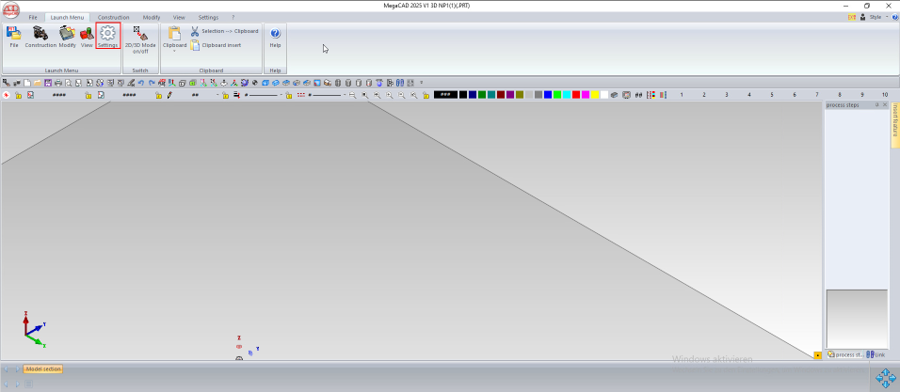
Step 1: Open the "Settings" command in the "Launch Menu" ribbon.
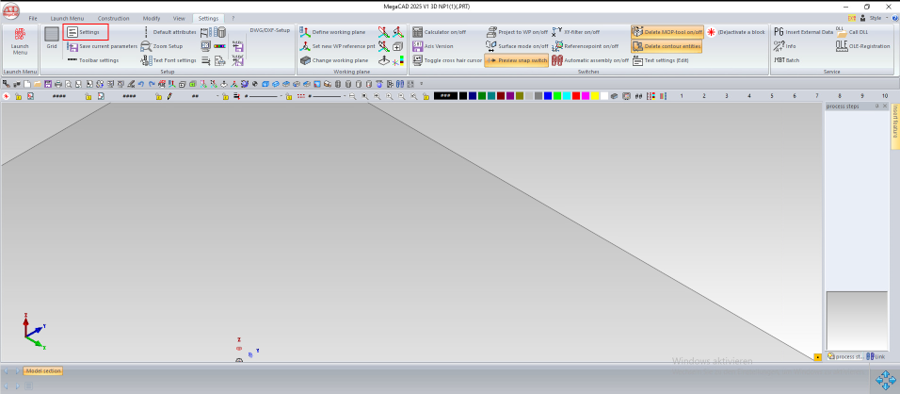
Step 2: The "Settings" ribbon opens. Click "Settings" again (in the "Launch Menu" group, far left) to open the settings dialog.
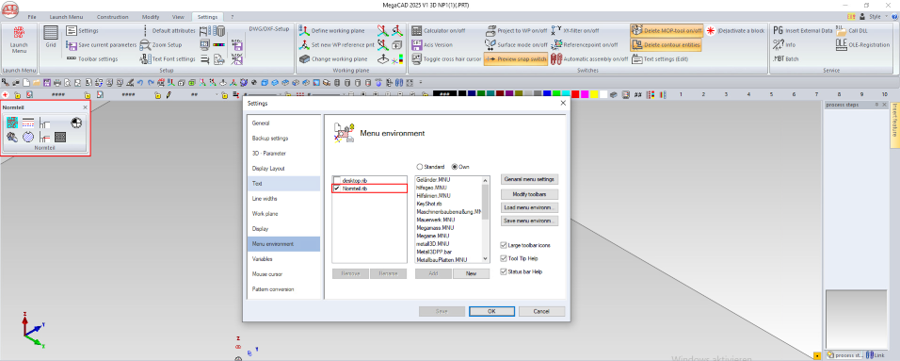
Step 3: In the settings dialog, select "Menu environment" on the left and make sure the "Own" option is enabled. Scroll down in the right-hand list, select the entry "Normteil.rib", and add it to the left-hand list of active menu integrations using "Add".
Step 4: As soon as "Normteil.rib" appears and is enabled in the left-hand list, the small "Normteil" menu automatically opens on the left edge of the screen. Then confirm the dialog with "OK" to save the setting.
Step 5: In the "Normteil" menu, click the PARTS4CAD icon at the bottom left to open the "norm.ini" tab in the ribbon.
Step 6: In the "norm.ini" tab, you will find the "PARTS4CAD" group on the right. Click "Insert norm part 3D" to start PARTS4CAD.
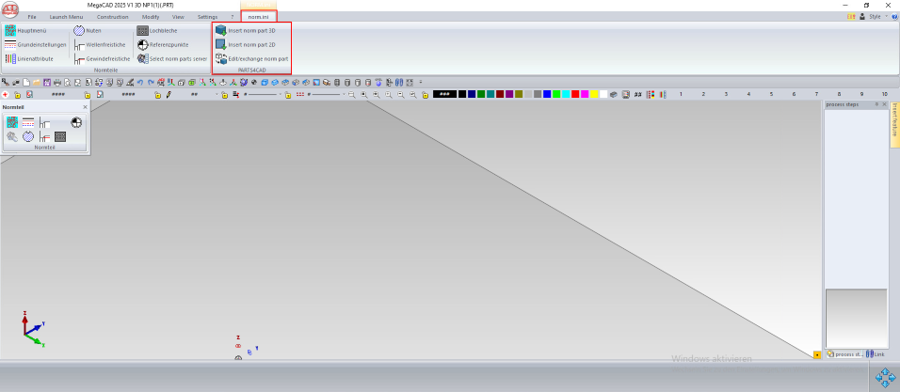
Step 7: PARTS4CAD opens. From here, you can continue as usual with part selection and licensing.
Further steps
If the solution/approaches described above have not helped, so that an error message continues to appear or you have a query about the article, you can contact our support team in writing at any time.
To open a ticket, you can register or log in at the top right of this page.
Was this article helpful?
That’s Great!
Thank you for your feedback
Sorry! We couldn't be helpful
Thank you for your feedback
Feedback sent
We appreciate your effort and will try to fix the article