TABLE OF CONTENTS
- General: check the CAD integration in PARTadmin
- Autodesk: Add-In Manager
- SOLIDWORKS: Add-In settings
- Plugin is still not shown
General: check the CAD integration in PARTadmin |
If the plugin does not appear in the CAD system after the installation, first check whether the interface to the CAD system is activated. This step applies to all CAD systems.
- Close the CAD system.
- Start PARTadmin as administrator:
- PARTsolutions: start PARTadmin from the Start menu or from the installation folder.
- PLUGIN 3Dfindit: open the installation folder (by default: C:\Program Files\Plugin 3Dfindit\bin\x86\64), right-click "padmin.exe" and select "Run as administrator".
- Go to "CAD integration" and find the row of your CAD system with the matching version (e.g. "AutoCAD 2026").
- Click "Activate" in the "Activate/Deactivate" column.
- Restart the CAD system.
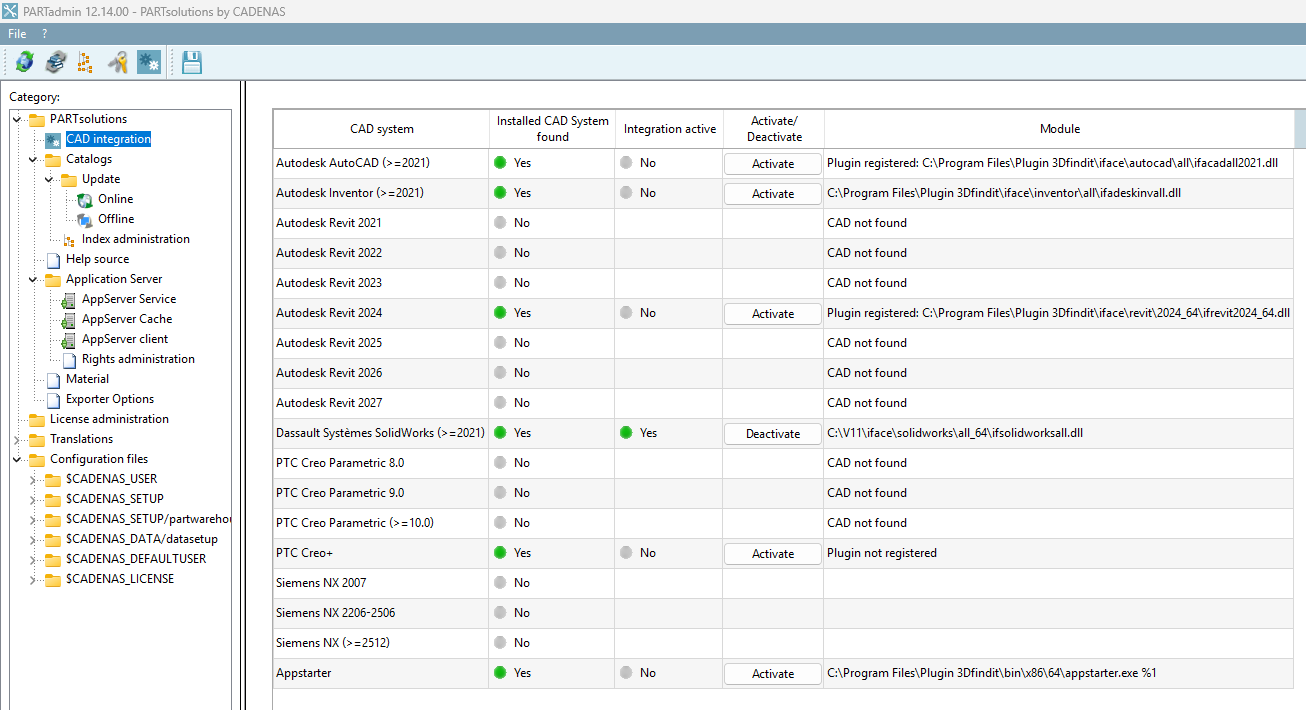
| Important note | If your CAD system is not listed in the "CAD integration" window, the plugin could not find the CAD installation. This can happen, for example, if the CAD system is not installed in the standard directory or if this CAD version is not yet supported by the plugin. |
Autodesk: Add-In Manager |
If the interface is activated in PARTadmin and the plugin is still not shown, the add-in may be blocked.
- Open the Add-In Manager (separate installed software from Autodesk).
- Select your CADENAS / PARTsolutions 3Dfindit integration
- In the section "Load Behavior", select "Load Automatically" and unselect "Block".
- Close the Add-In Manager with "OK" and restart AutoCAD.
- On the next startup, the Integration tab is shown in the ribbon.
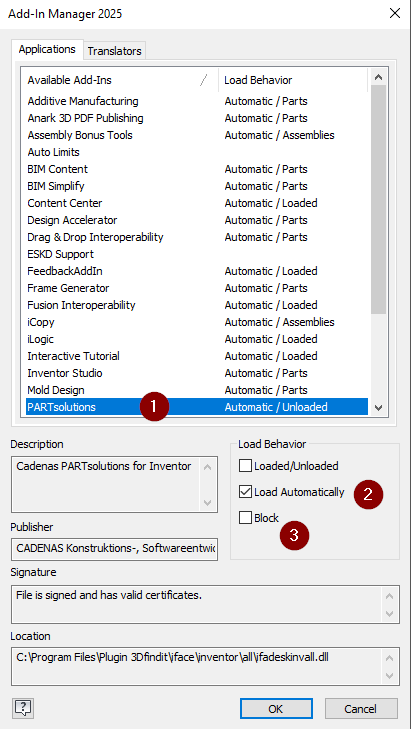
Note: If the plugin is not listed in the Add-In Manager at all, first check the CAD integration in PARTadmin (see above) and restart the computer after the installation.
SOLIDWORKS: Add-In settings |
- In SOLIDWORKS, open "Tools › Add-Ins" (the naming may differ slightly depending on the version).
- Find the CADENAS / PARTsolutions 3Dfindit add-in in the list.
- Select the checkbox on the left to activate the add-in, and the checkbox on the right ("Start Up") so it is loaded on every start.
- Confirm with "OK" and restart SOLIDWORKS.


Plugin is still not shown |
If the plugin is still not shown after these steps, please submit a ticket and send us your Systeminfo file:
Go to the installation folder of your Cadenas Intergration (default at C:\Program Files\Plugin 3Dfindit\bin\x86\64) and there find "psupport.exe". Start the program, click on "Save to file" and send the created sysinfo.txt file to us.
Was this article helpful?
That’s Great!
Thank you for your feedback
Sorry! We couldn't be helpful
Thank you for your feedback
Feedback sent
We appreciate your effort and will try to fix the article